Lab / Expense Assistant

Smart Expense Assistant
Type what you spent, the way you'd say it. AI works out the amount, category, shop and date, and you can ask questions about your money in plain English.
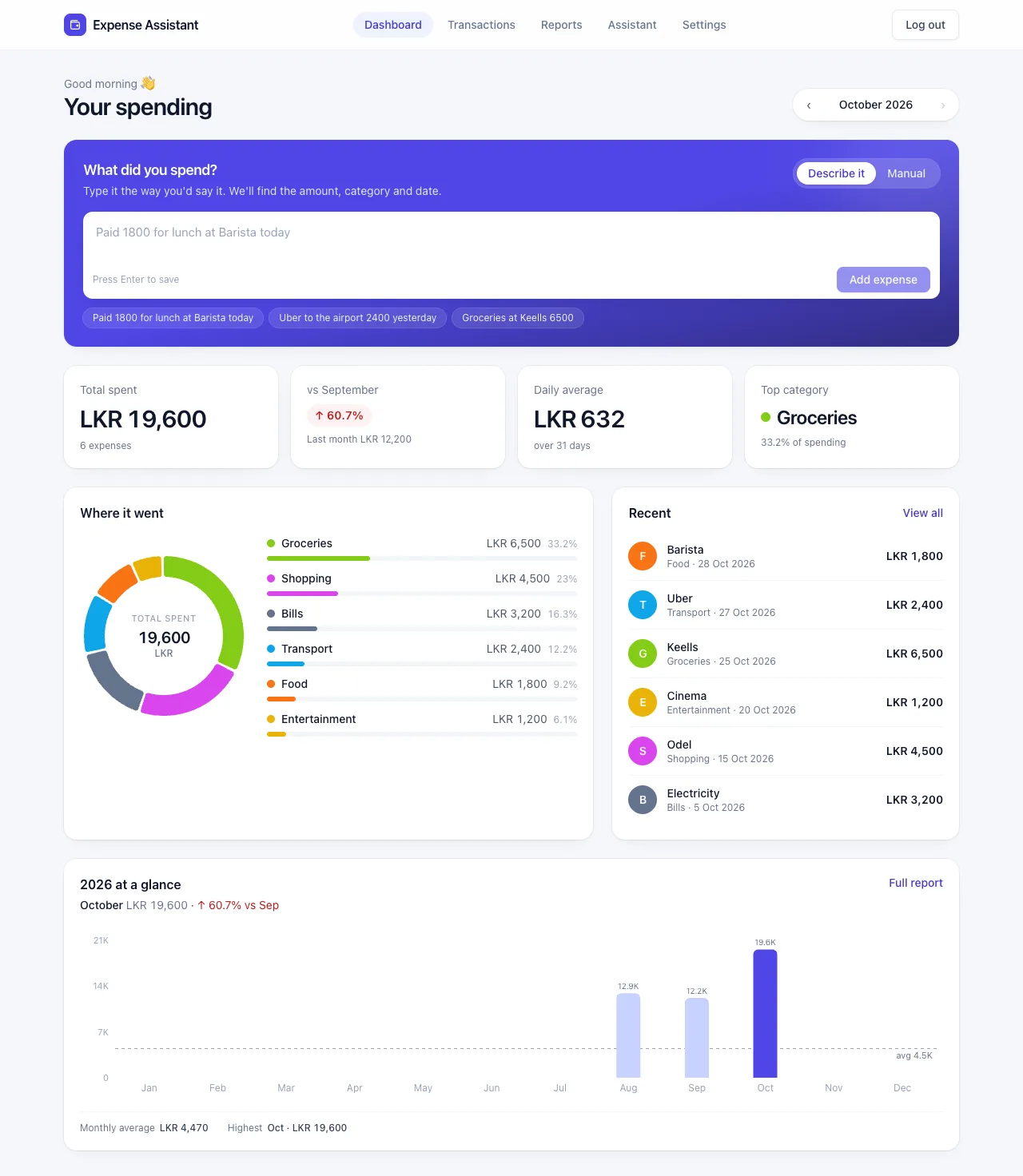
Less typing, more clarity
Describe it in words
Write “Paid 1800 for lunch at Barista today” and the amount, currency, category, shop and date are filled in. Check it, fix anything, save.
Or use a form
Prefer boxes? Add expenses manually. Choose AI, Manual or both in Settings.
Ask your money questions
“How much did I spend on food compared to last month?” The numbers come from your saved expenses, not guesses.
Dashboard & reports
See this month's total, change against last month, your top category and a year of spending at a glance.
Search & fix
Browse every expense, filter by month or category, correct a category or delete a mistake.
Your choice of AI
Use Anthropic (Claude), OpenAI, or Ollama running free on your own computer. Keys are stored encrypted.
How it works
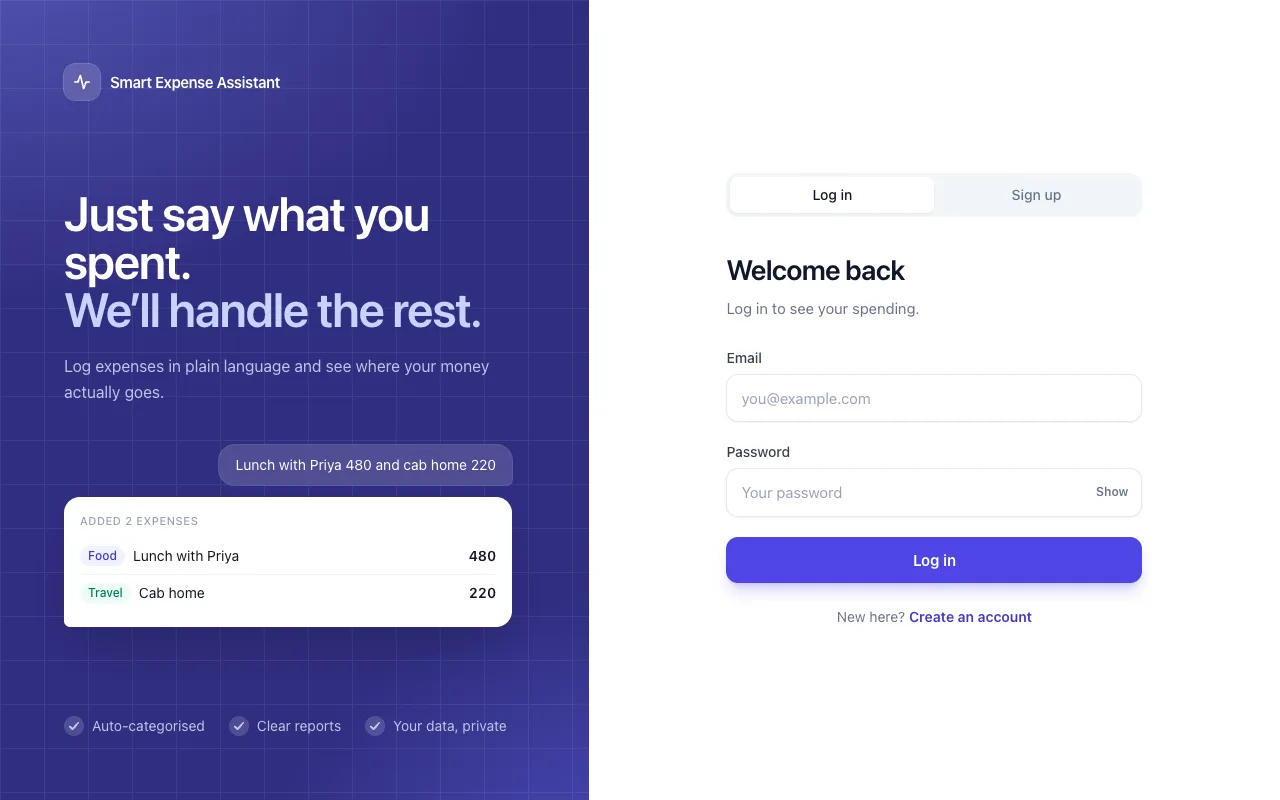
Create your account
Sign up with an email and a password. Each person has their own account and only sees their own expenses.
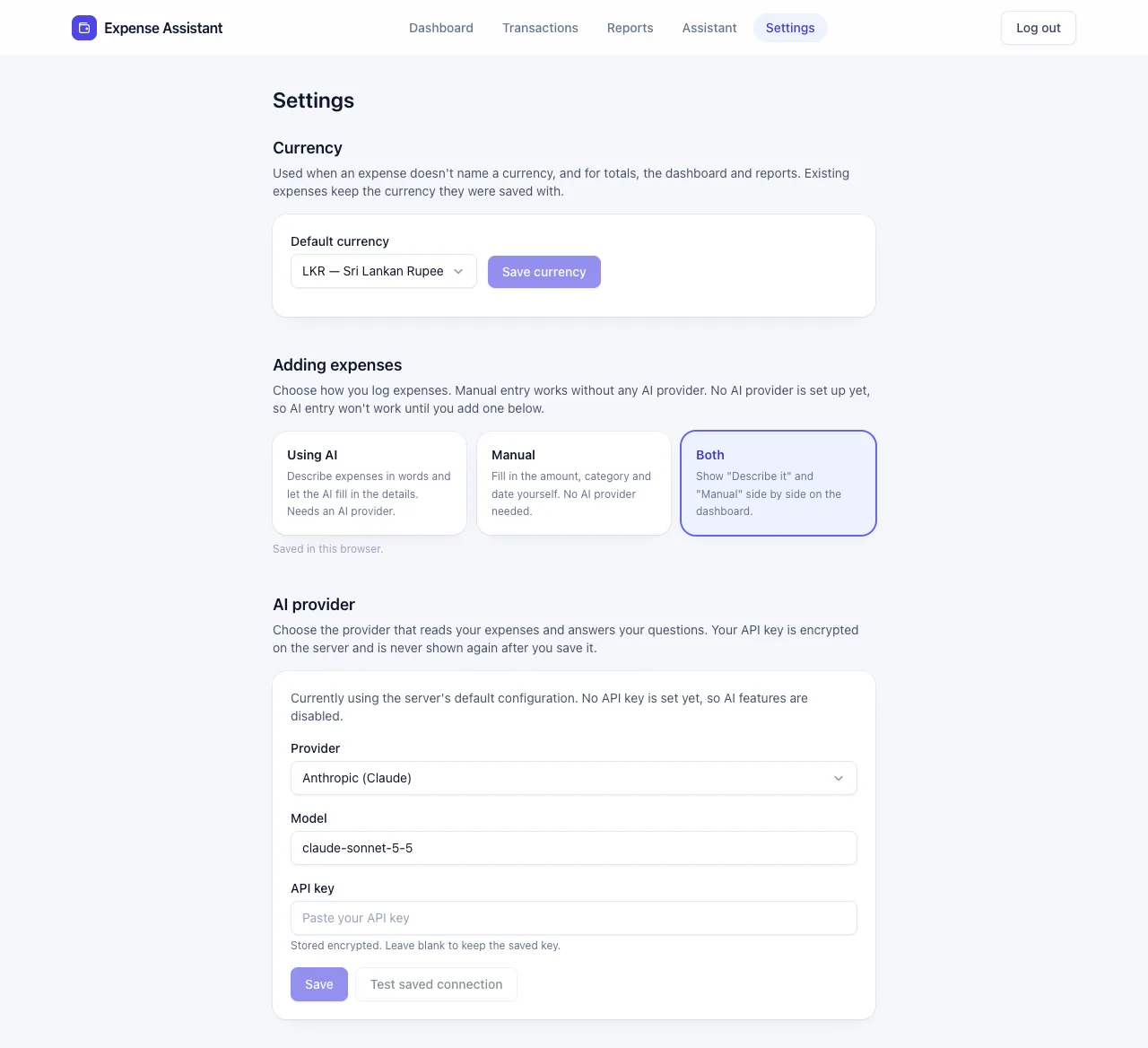
Pick your currency
Choose the currency you normally use, such as LKR, INR or USD. Totals and charts follow it. This is also where you choose your AI and how you add expenses.
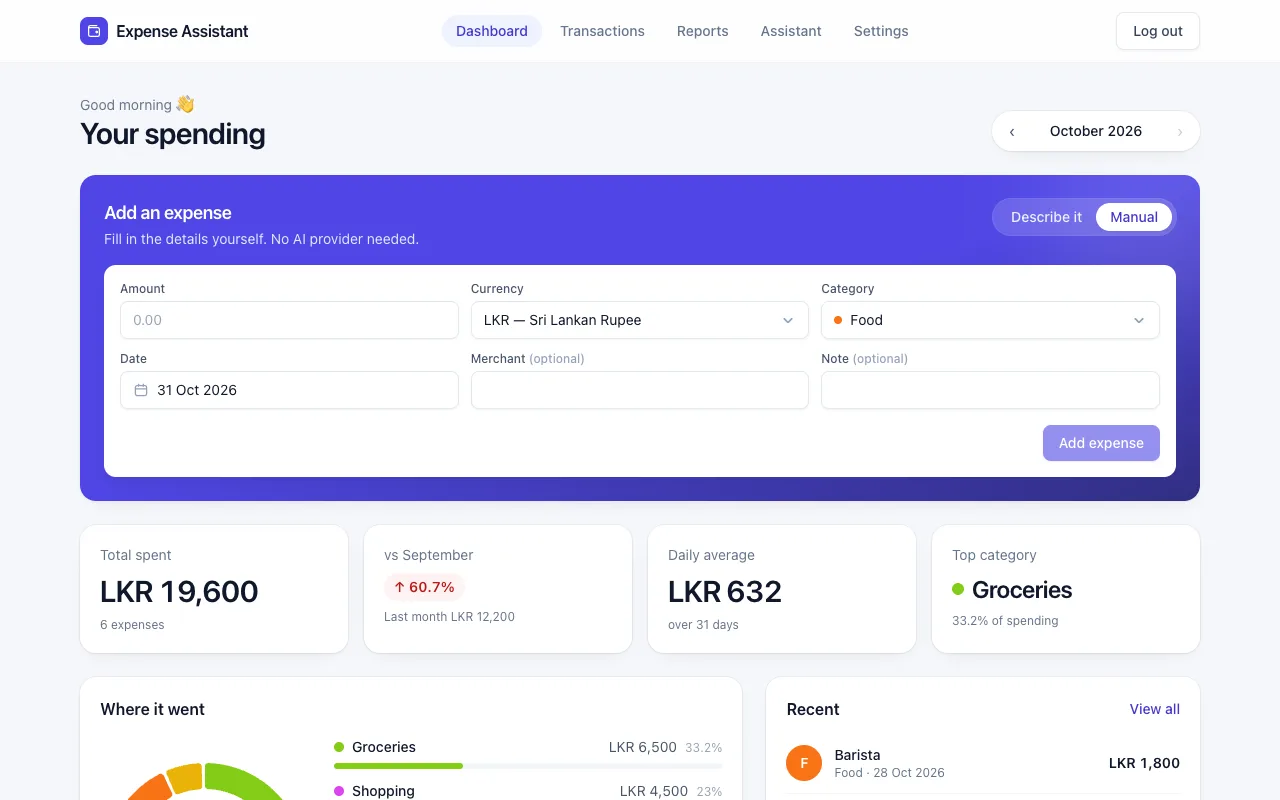
Add an expense
Type a sentence or fill in the form. If something is missing, such as the amount, the app tells you what to add instead of guessing.
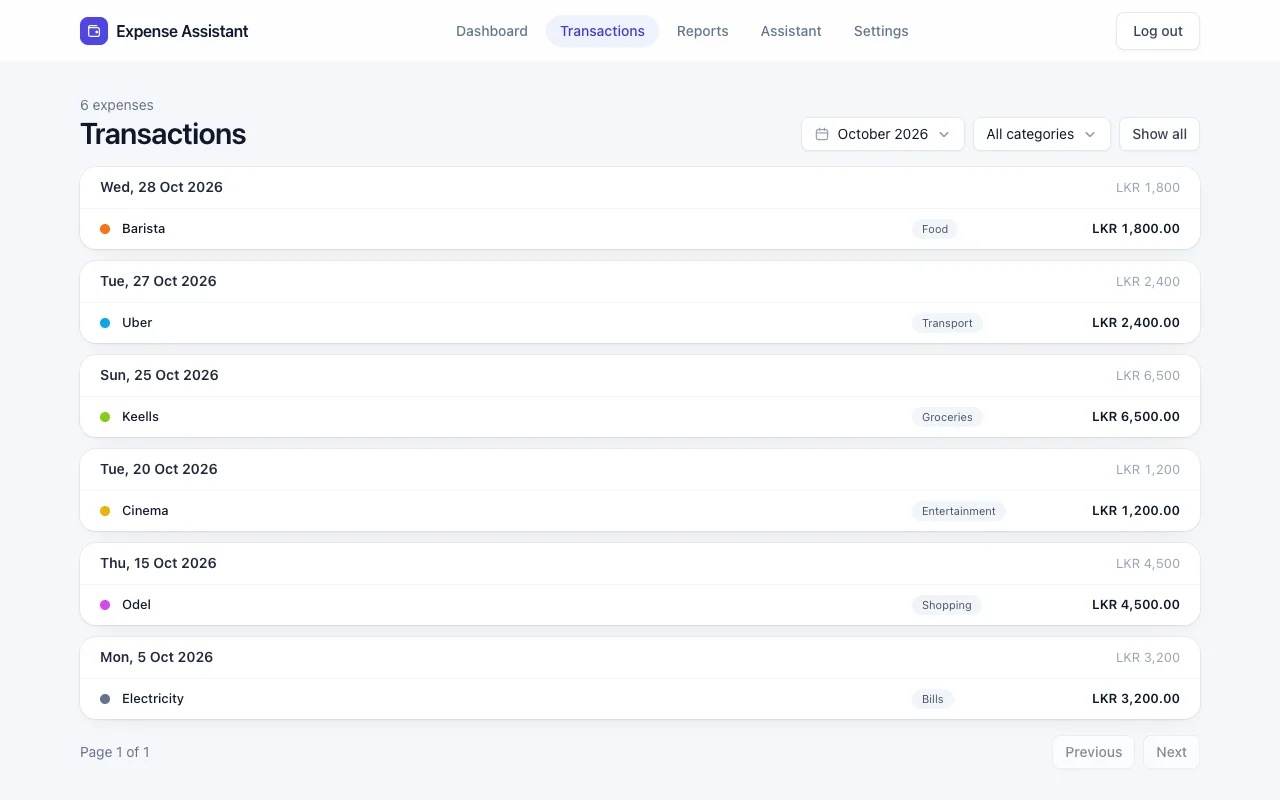
Review your transactions
Search and filter every expense by month or category. Change a category or delete an entry that is wrong.
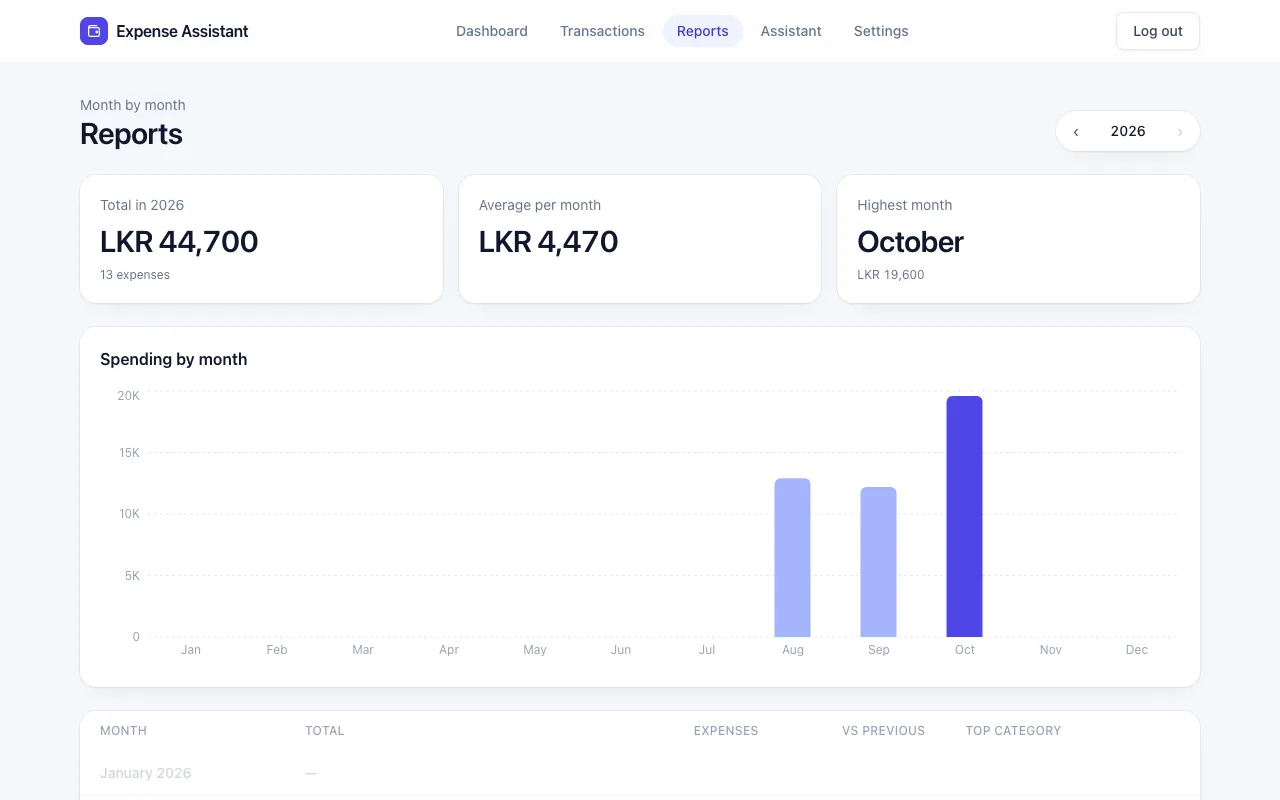
See where it went
Charts show spending by month and by category, so the biggest costs stand out.
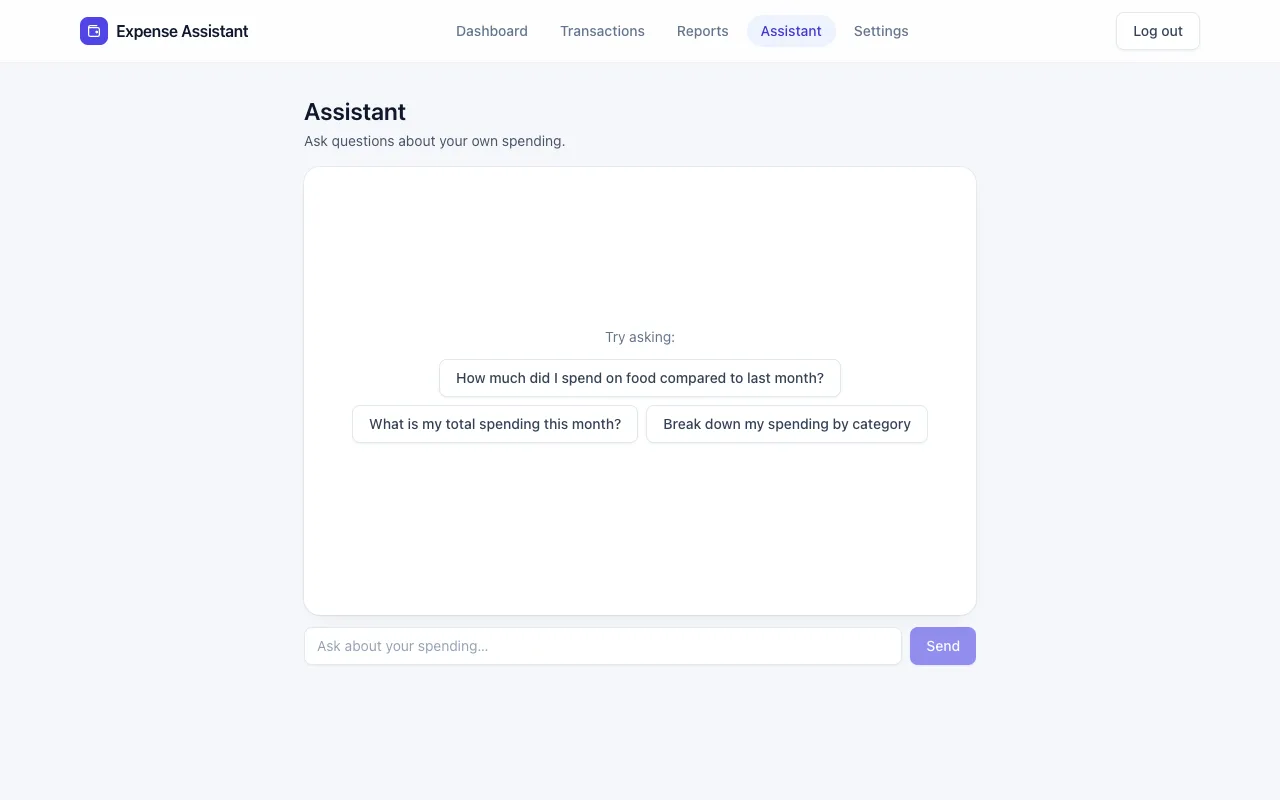
Ask the Assistant
Ask in your own words: “What is my total spending this month?” or “Break down my spending by category.” Answers are based on your saved expenses.
Screenshots show sample data only.
Get started
MIT LicenseThere is no installer. You run it on your own computer with Docker Desktop, which sets up everything else.
Set it up once
- Install and open Docker Desktop (Mac or Windows). Wait until it says Docker is running.
- Download the project (or clone it), then open a terminal inside the folder.
- Create your settings file:
On Windows Command Prompt usecp .env.example .envcopy .env.example .env. - Open
.envand setJWT_SECRETto any long random sentence (32+ characters). Optionally add your AI key asANTHROPIC_API_KEY.
Start it
- Run:
The first time takes a few minutes. When the messages stop scrolling, it is ready.docker compose up --build - Open http://localhost:3000 and create your account.
- To stop, press
Ctrl + Cor rundocker compose down. Start again withdocker compose up. Your expenses are kept between runs.
No AI key?
Everything works except describing expenses in words and the Assistant. Switch Adding expenses to Manual in Settings.
Built with
Backend
Python 3.12, FastAPI, Pydantic v2, SQLAlchemy 2.0, Alembic and pandas, with a pytest suite.
Frontend
Next.js (App Router), TypeScript, Tailwind CSS, Recharts and React Query.
Data & AI
PostgreSQL. Anthropic, OpenAI or Ollama return structured JSON that the backend validates before saving.
The API has interactive docs at http://localhost:8000/docs while the app runs. See the technical reference for settings, API examples and running without Docker.
Questions & answers
Does it cost anything?
The app is free and open source under the MIT License. If you use Anthropic or OpenAI, they bill you for your own AI usage. Ollama runs free on your computer.
Do I need an AI key?
No. Without one you can add expenses with the form and use the dashboard, transactions and reports. Only describing expenses in words and the Assistant need AI.
Where is my data stored?
In a PostgreSQL database on your own computer, started by Docker. Each user only sees their own expenses.
What does the AI see?
The sentence you type, or your question and the spending data needed to answer it, goes to the AI provider you chose. Pick Ollama to keep everything on your machine.
The page won't open
Make sure Docker Desktop is running and the terminal still shows the app running, then reload http://localhost:3000. If you see “port already in use”, close the other program or run docker compose down and start again.
I see “AI not configured”
Add an AI key in Settings, or switch Adding expenses to Manual.