Lab / Shelfie

Shelfie Home Library
Scan a barcode, and your book is catalogued. A free, private app for Mac and Windows that keeps a neat catalogue of every book you own.
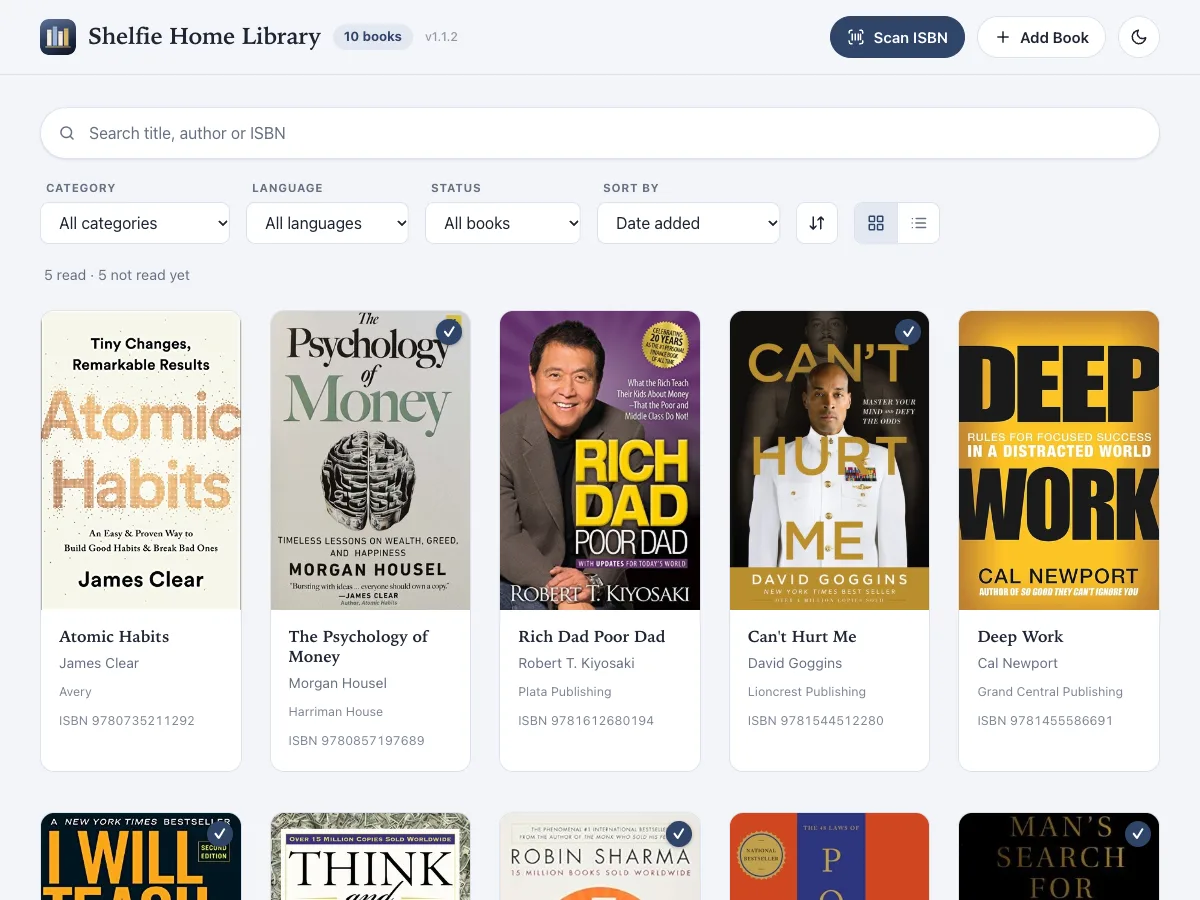
Everything a home library needs
Scan to add
Point your camera at a book's barcode, or type the ISBN. Duplicates are caught: scanning a book you already own opens its existing entry.
Details filled in
Title, authors, publisher, description, categories and cover are looked up for you, and you can edit them before saving.
Add by hand
No barcode or online record? Enter the book manually. Only an ISBN and a title are required.
Cover photos
Photograph a book's cover and the app straightens and crops it for you.
Find things fast
Search by title, author, ISBN, publisher or category. Filter by category, language or read status, sort, and switch between grid and list.
Reading & lending
Mark books as read and see your totals. Note who you have lent a book to.
How it works
Start with an empty shelf
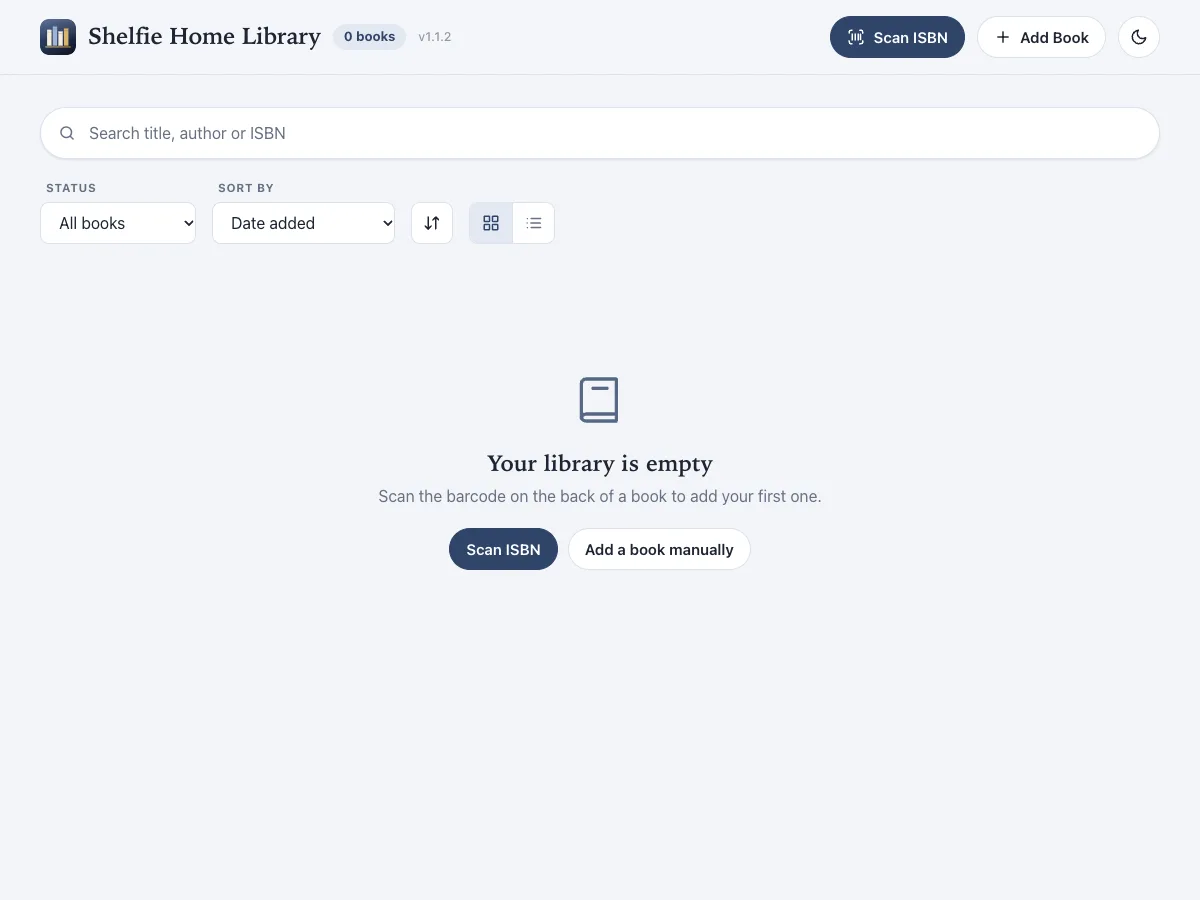
The first time you open Shelfie your library is empty. Add your first book by scanning it or typing it in.
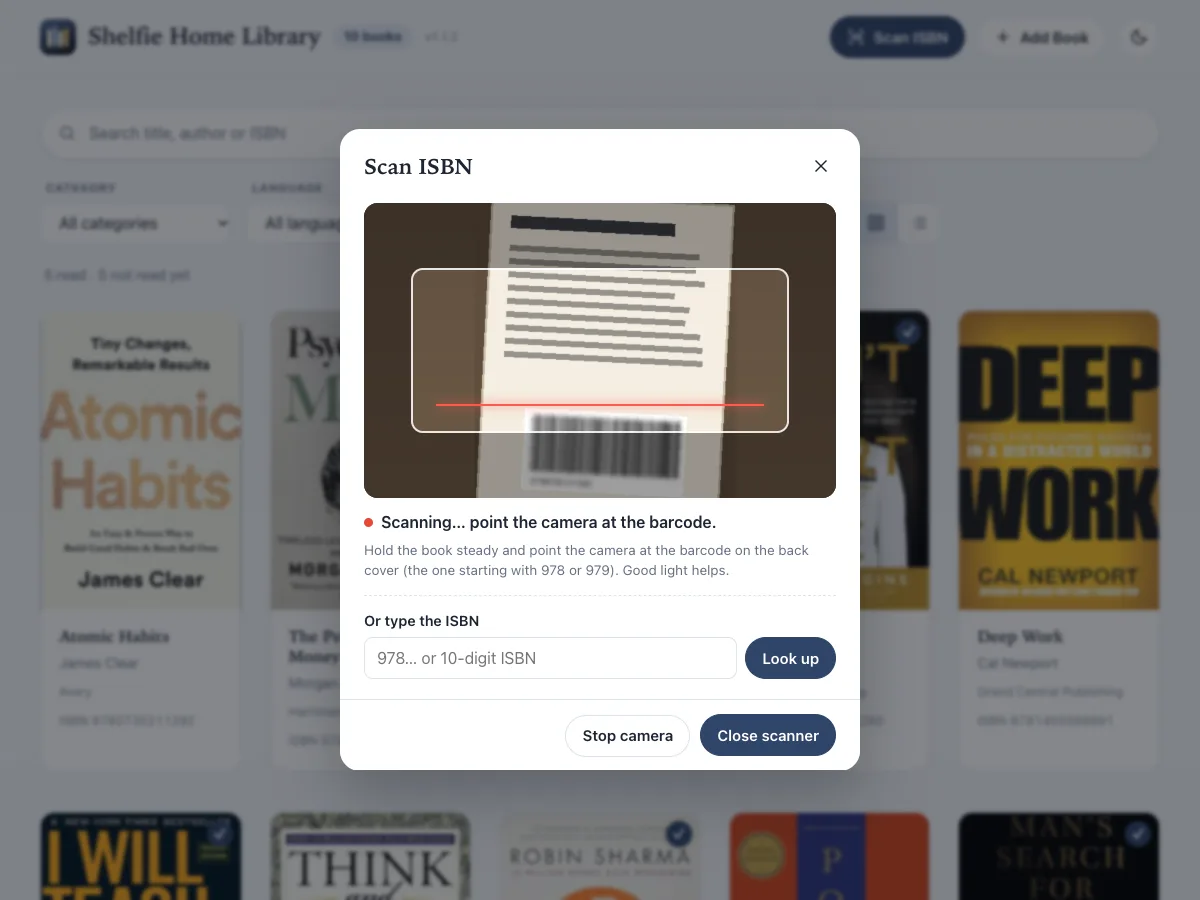
Scan a barcode
Hold the barcode on the back cover (starting with 978 or 979) up to the camera. No camera? Type the ISBN and click Look up.
Check, edit, or add by hand
Review what was found and fix anything before saving. Books without a barcode can be typed in. Only the title and ISBN are required.

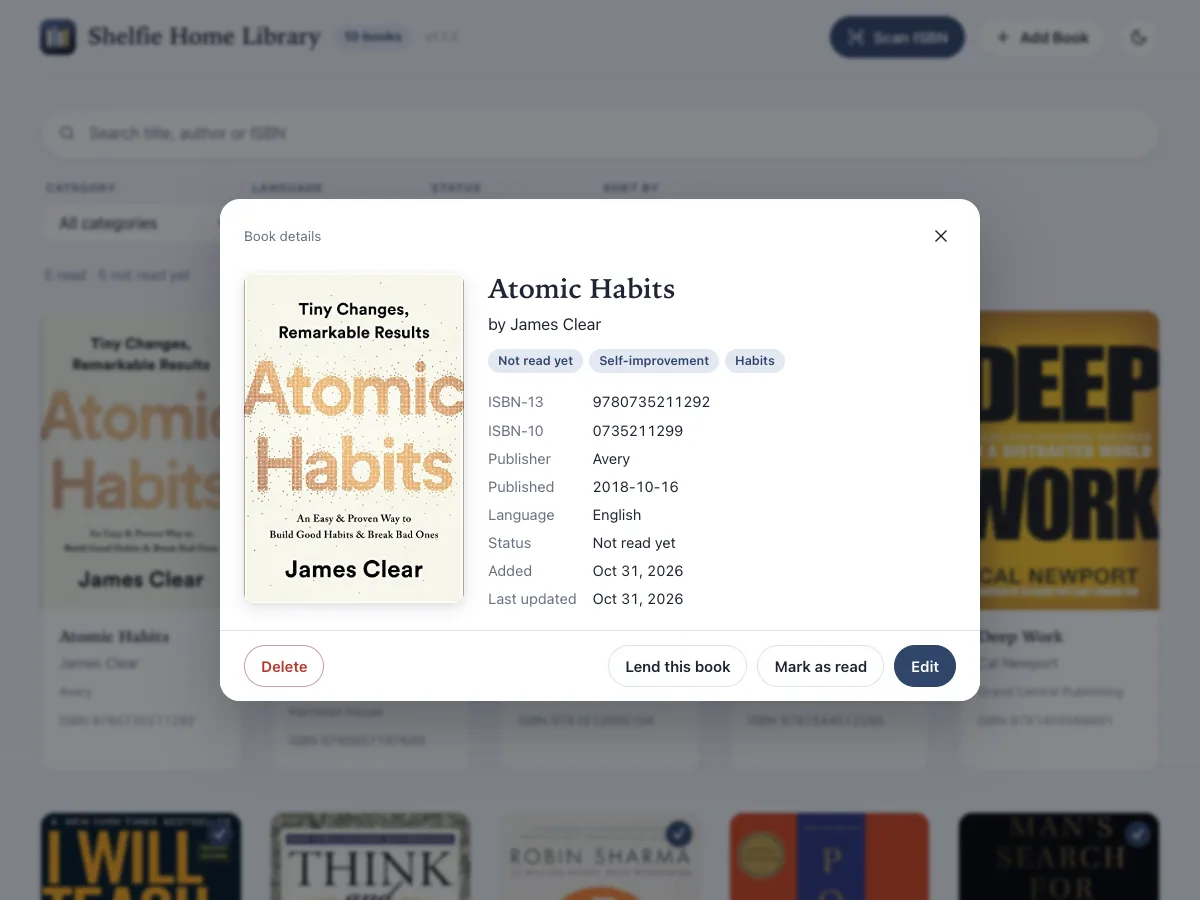
Open any book
See the full details, mark it as read or not read, edit it, or delete it after a confirmation.
Lend a book to a friend
Note who has borrowed a book and when. Mark it returned later, and filter by Lent out to see everything that is currently away.

Find any book fast
Search by title, author, publisher, category or number. Filter by category, language or status, and sort by date, title, author or publication date.

Grid or list
Switch between a grid of covers and a compact list for larger collections.
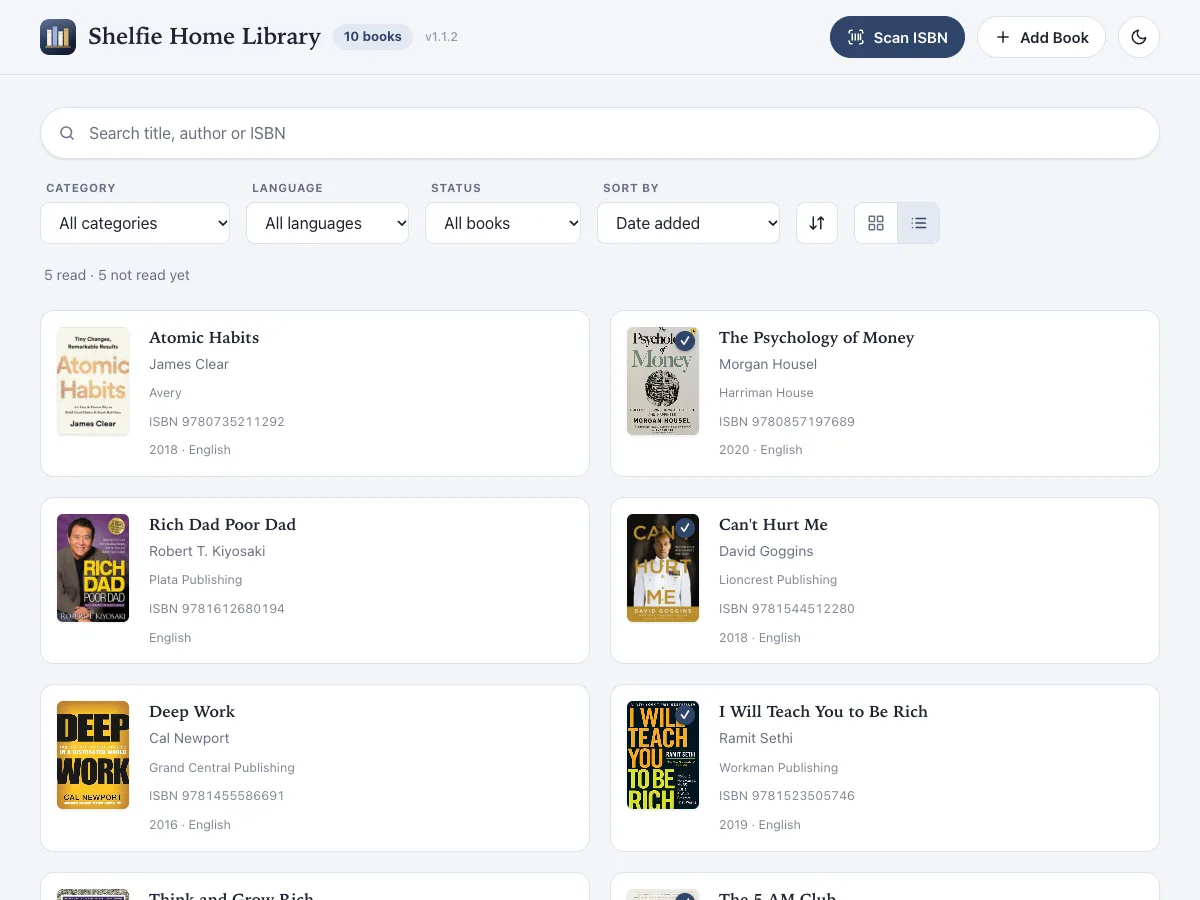
Light and dark
Switch between light and dark with the moon button at the top right.

Screenshots show sample books only. Cover images are from Open Library and belong to their respective authors and publishers.
Download
Latest: v1.1.2These links always fetch the newest published release.
Not sure which Mac you have? Open the Apple menu, then About This Mac. “Apple M…” means Apple silicon; “Intel” means Intel. Checksums are in SHA256SUMS.txt on the release page.
Install & first run
macOS
- Open the
.dmgand drag Shelfie Home Library into Applications. - The app is not yet signed by Apple. The first time, right-click it, choose Open, then confirm.
- If macOS says the app is “damaged and can't be opened”, it is not damaged. macOS flags downloaded unsigned apps. Click Cancel, open Terminal and run:
This only removes the quarantine flag from this one app and does not touch your books. Then open the app again.xattr -cr "/Applications/Shelfie Home Library.app"
Windows
- Run the downloaded
.exeand follow the installer. - If Windows SmartScreen warns that the app is unrecognised, choose More info, then Run anyway.
Using it
- Click Scan ISBN and allow camera access, or type the ISBN. Barcodes on the back cover start with 978 or 979.
- Check the details, edit if you like, then click Add to My Library.
Questions & answers
Does it cost anything?
No. Shelfie is free and open source under the MIT License.
Do I need the internet?
Only to look up a book's details and cover when you add it, and to check for updates. Browsing, searching and editing your books works offline.
How do I back up my library?
There is no export button. Close the app and copy the data folder (see Private by design below) to a USB stick or cloud drive. To restore, copy the files back.
Can two computers share one library?
Not automatically. Each computer keeps its own library.
Does it update itself?
Yes. It checks in the background and offers to restart when a new version is ready. On a Mac, if an update can't install by itself, Shelfie opens the download page.
Windows says “Smart App Control blocked an app”
Smart App Control has no “Run anyway” button. To continue, open Windows Security, then App & browser control, then Smart App Control settings, and choose Off. Windows will not let you turn it back on without resetting the PC, so only do this if you are comfortable with that.
Private by design
Shelfie does not collect any user data. There are no accounts, no analytics and no tracking. Your library is stored only on your own computer and is never uploaded anywhere.
- Where your data lives:
~/Library/Application Support/HomeLibraryon macOS,%APPDATA%\HomeLibraryon Windows. - Network use: only book lookups by ISBN (Google Books, with Open Library as a fallback) and checks for new app versions. The app updates itself in the background and offers to restart.
- Uninstalling does not delete your library. Remove the folder above if you want it gone.